Excel is not a password manager—it’s a security risk. Find out why companies are switching to password managers, what solutions are available, and what NIS2 requires.
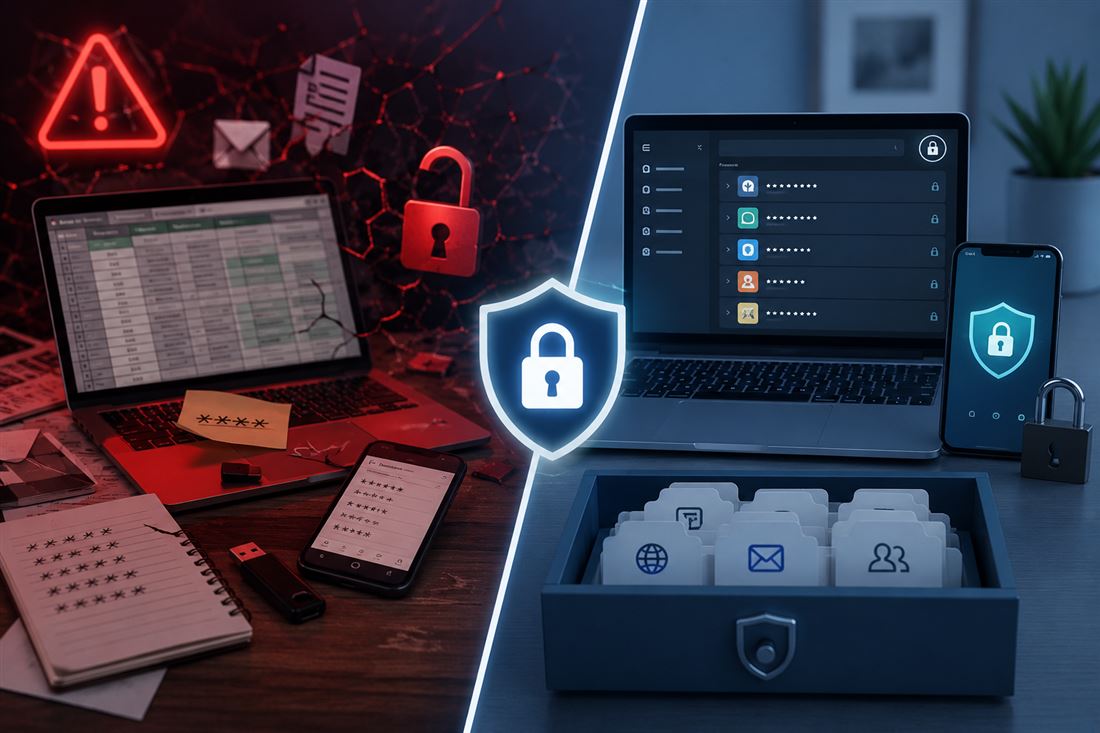
Password for work email. Password for the accounting system. Password for the server, cloud storage, CRM, and banking portal. The average employee today manages dozens of login credentials—and most companies handle this the same way: with an Excel spreadsheet, a notepad, or an email that the employee forwarded to themselves. This isn’t password management. This is an open invitation to an attacker.
How most companies actually handle this
If we asked a hundred Slovak companies with five to fifty employees how they manage passwords, the answers would fall into several categories.
- First and most common: each employee remembers “their own” passwords, saved in the browser or in Notes on their phone.
- Second: there is a shared Excel file—somewhere on a drive or directly in an email attachment.
- Third: passwords haven’t been changed and are the same everywhere because “it’s easier to remember them.”
Each of these categories poses a specific security risk. And not a hypothetical one—a real, current, and well-documented one.
Why Excel Is Dangerous
Excel (or any unencrypted file) has several fundamental problems when it comes to password management.
Unencrypted storage. A standard .xlsx file is not encrypted. Even if you set a password for it within Excel itself, its protection is easily bypassed using commonly available tools. Anyone who gains access to the file—an employee, an attacker with disk access, or someone who accidentally receives the email—can see all the passwords in plain text.
Sharing via email. The file containing passwords travels through the company’s email inbox, Slack, and WhatsApp. Every time it’s sent, it’s another opportunity for it to be intercepted or accidentally delivered to the wrong recipient.
No history, no audit. If someone changes a password in Excel, no one will know who did it or when. If someone downloads the file and leaves the company, nothing is recorded. There is no audit trail.
One file, one point of failure. Excel has no granular access control. You either see the entire file or nothing. It’s not possible to give an accountant access only to accounting passwords without her also seeing server login credentials.
No integration. Excel can’t automatically fill out login forms, can’t flag weak or reused passwords, and can’t detect if any of your passwords have been leaked in a data breach.
What exactly is at risk
These scenarios are not hypothetical. A leaked password file is a common outcome of:
- a phishing attack, in which an employee opens an attachment and the attacker gains access to their computer, including network drives,
- an employee leaving the company who downloaded data—including the password file—before leaving,
- a ransomware attack, in which the attacker scans network resources for such files before encrypting data,
- a simple human error—sending an email to the wrong recipient, sharing a link with the entire organization instead of a specific person.
Once an attacker gets their hands on a password file, they need nothing else. They have access to everything at once.
What is a password manager and how does it work
Password manager (password manager) is specialized software designed exclusively for the secure storage, generation, and sharing of login credentials. It works on several basic principles:
Device-level encryption. Passwords are encrypted before they even leave your device. Only an encrypted blob is sent to the provider’s servers—the provider itself does not know what passwords you have stored. This model is called zero-knowledge architecture.
One master password. The user only needs to remember one strong master password. All other passwords are automatically generated, stored, and filled in by the tool.
Autofill. The password manager works as a browser extension or desktop application and automatically fills in login forms on legitimate websites. This is an important protection against phishing—if a fraudulent site imitates the real one but has a different address, the password manager will not fill out the form.
Sharing with access control. Enterprise versions allow you to share specific passwords with specific people or teams without them seeing the password itself in plain text. An employee logs in via the manager — they never see the password, but can use it.
Audit and history. Every action is logged — who logged in, who changed a password, who shared access. In the event of an incident, you can reconstruct exactly what happened.
What solutions are available — an overview for businesses
There are several proven tools on the market that are commonly deployed in business environments. It doesn’t matter if you have five or five hundred employees — there’s a solution for every size.
Bitwarden is an open-source password manager with an enterprise version. It is one of the few solutions where you can run the entire instance on your own server (self-hosted), which companies with strict data localization requirements will appreciate. The price is very reasonable, and the code is publicly auditable.
1Password Teams / Business is one of the most widely used solutions in the corporate environment. It offers a clean interface, support for travel mode (where you can temporarily hide sensitive vaults), detailed audit logs, and integration with tools like Okta or Azure AD. Suitable for companies that want to deploy a solution quickly without managing their own infrastructure.
Keeper Business emphasizes security auditing and reporting. It includes a built-in secret management module (Keeper Secrets Manager), which is useful for IT teams working with API keys and access tokens. It also features a dark web monitoring module—it alerts you if any of your company’s emails appear in leaked databases.
NordPass Business is a newer offering from the team behind NordVPN. It offers a simpler interface suitable for smaller teams without a dedicated IT administrator. It includes a Health Check feature that automatically identifies weak, reused, or outdated passwords.
Passbolt is another open-source solution focused on team collaboration. It is designed primarily for technical teams and developers, allowing for self-hosting and collaboration via CLI.
What to Look for When Choosing
When selecting a password manager for your business, we recommend evaluating several criteria:
- Zero-knowledge architecture. Verify that the provider claims to have no access to your data. If so, check whether this is backed by independent security audits.
- Self-hosting capability. If you have data sovereignty requirements (for example, in regulated industries), look for a solution that you can run on your own server or in the cloud within the EU.
- Integration with existing infrastructure. Larger companies want integration with Active Directory or an SSO (Single Sign-On) provider. Verify which solution supports this integration.
- Permission granularity. It’s important to be able to create shared vaults at the team level—accounting sees accounting access, IT sees server access, sales sees CRM and email tools.
- Onboarding and offboarding management. When an employee leaves, what happens to their passwords? A good solution has a clear offboarding process—automatic revocation of access and transfer of vault management.
Password Management and NIS2
For companies subject to the NIS2 Directive (Cybersecurity Act), password management is not just a recommendation—it is part of the requirements for technical and organizational security measures. NBÚ Decree No. 227/2025 Z. z. explicitly requires access control and the management of authentication methods as part of the security measures for obligated entities.
If your company is classified as a critical or essential entity under Act No. 69/2018 Coll., as amended, the absence of formal password management may be deemed a failure to comply with obligations during an NBÚ inspection.
What implementing a password manager looks like in practice
Deploying a corporate password manager is not technically complex—the harder part is usually convincing people to actually use it. A few best practices:
- Start with a pilot involving the IT department or a single team. Gather feedback and refine processes before rolling out the solution company-wide.
- Set a clear rule: company passwords are stored exclusively in the password manager. Not in the browser, not in Excel, not on the phone.
- Set a password policy—minimum length, no repeated passwords, mandatory rotation when an employee leaves.
- Implement multi-factor authentication (MFA) not only for the password manager but for all critical systems—email, cloud storage, VPN, banking portal.
- Regularly audit the password vault—identify shared accesses that are outdated and passwords that haven’t been changed in over a year.
Conclusion
Excel is a great tool for many things. Managing corporate passwords is not one of them. Not because Excel is bad—but because password management requires encryption, granular access controls, auditing, and integration that no spreadsheet can provide.
Deploying a password manager is one of the cheapest and most effective security investments a company can make today. Licensing costs are in the range of a few euros per employee per month. The costs of a security incident caused by leaked login credentials are orders of magnitude higher—and that’s not even counting reputational damage or potential penalties under the GDPR or the Cybersecurity Act.
